
Can we help you?
Store Assistant is available 24x7.
You’re now signed up to receive Microsoft Store emails. Thank you!
Trade in and you could get cash back.
Microsoft Store Deals




Why buy from Microsoft Store


Originally From $1,248.98 now From $1,219.18
From $1,248.98 $1,219.18
Get the most out of your day with this bundle featuring Surface Pro (11th Edition...Select Surface Pro, Copilot+ PC (11th Edition), Essentials Bundle for more information.
Originally From $1,248.98 now From $1,219.18
From $1,248.98 $1,219.18
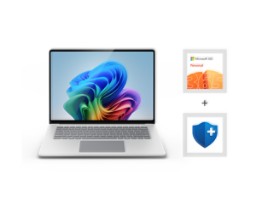
Get the most out of your day with this bundle featuring Surface Laptop (7th Edition...Select Surface Laptop, Copilot+ PC (7th Edition) Essentials Bundle for more information.

Originally From $2,348.98 now From $2,299.18
From $2,348.98 $2,299.18
Get the versatility to create and the power to perform with this bundle featuring...Select Surface Laptop Studio 2 Essentials Bundle for more information.

Originally From $1,028.98 now From $1,003.18
From $1,028.98 $1,003.18
Get it all done with this bundle featuring Surface Laptop Go 3, Microsoft 365, and...Select Surface Laptop Go 3 Essentials Bundle for more information.

Originally From $1,244.97 now From $1,215.97
From $1,244.97 $1,215.97
Get the most out of your day with this bundle featuring Surface Pro for Business, 11ᵗʰ...Select Surface Pro for Business, Copilot+ PC Essentials Bundle | Snapdragon for more information.

Originally From $1,163.98 now From $1,151.18
From $1,163.98 $1,151.18
Get the most out of your day with this bundle featuring Surface Laptop for Business...Select Surface Laptop for Business, Copilot+ PC Essentials Bundle | Snapdragon for more information.

Originally From $1,354.97 now From $1,323.97
From $1,354.97 $1,323.97
Tablet flexibility and laptop performance in an ultraportable design, with AI-driven...Select Surface Pro 10 for Business Essentials Bundle for more information.

Originally From $1,298.98 now From $1,279.18
From $1,298.98 $1,279.18
Exceptional power, better performance, and AI-driven tools. Save when you bundle...Select Surface Laptop 6 for Business Essentials Bundle for more information.

From $2,099.99
From $2,099.99
Reimagine the ways you get it done with this bundle featuring Surface Laptop Studio 2...Select Surface Laptop Studio 2 for Business Essentials Bundle for more information.
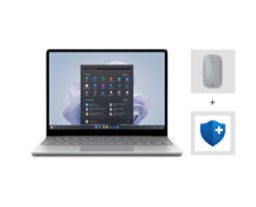
Originally From $838.98 now From $820.98
From $838.98 $820.98
Get it all done and keep it all secure with this bundle featuring Surface Laptop Go 3...Select Surface Laptop Go 3 for Business Essentials Bundle for more information.

Originally $69.99 now $59.99
$69.99 $59.99
Experience the Xbox Wireless Controller – Ghost Cipher Special Edition featuring a...Select Xbox Wireless Controller – Ghost Cipher Special Edition for more information.

Originally $69.99 now $64.99
$69.99 $64.99
Experience the Xbox Wireless Controller – Nocturnal Vapor Special Edition, featuring a...Select Xbox Wireless Controller – Nocturnal Vapor Special Edition for more information.

Originally From $64.99 now From $45.30
From $64.99 $45.30
Experience the Xbox Wireless Controller, designed for enhanced comfort during...Select Xbox Wireless Controller for more information.

Originally $179.99 now $159.99
$179.99 $159.99
The Xbox Elite Wireless Controller Series 2 features over 30 ways to play like a pro...Select Xbox Elite Wireless Controller Series 2 for more information.

Originally From $129.99 now From $100.58
From $129.99 $100.58
Experience the Xbox Elite Wireless Controller Series 2 – Core, featuring...Select Xbox Elite Wireless Controller Series 2 – Core for more information.

Originally $69.99 now $54.00
$69.99 $54.00
Experience the Xbox Wireless Controller – Daystrike Camo Special Edition, featuring a...Select Xbox Wireless Controller – Daystrike Camo Special Edition for more information.

Originally $59.99 now $49.99
$59.99 $49.99
Experience the modernized Xbox Wireless Controller, designed for enhanced comfort...Select Xbox Wireless Controller + USB-C® Cable for more information.

Originally $69.99 now $58.00
$69.99 $58.00
Experience the Xbox Wireless Controller – Arctic Camo Special Edition, featuring a...Select Xbox Wireless Controller – Arctic Camo Special Edition for more information.

Originally $69.99 now $57.99
$69.99 $57.99
Experience the Xbox Wireless Controller – Sky Cipher Special Edition featuring a...Select Xbox Wireless Controller – Sky Cipher Special Edition for more information.
Originally From $1,688.98 now From $1,651.18
From $1,688.98 $1,651.18
Buy the Surface Pro for Business, 11th Edition, Copilot+ PC Essentials Bundle...Select Surface Pro for Business, Copilot+ PC Essentials Bundle | Intel for more information.
Originally From $1,598.98 now From $1,579.18
From $1,598.98 $1,579.18
Buy the Surface Laptop for Business, 7th Edition, Copilot+ PC Essentials Bundle...Select Surface Laptop for Business, Copilot+ PC Essentials Bundle | Intel for more information.
Originally From $1,244.97 now From $1,215.97
From $1,244.97 $1,215.97
Get the most out of your day with this bundle featuring Surface Pro for Business, 11ᵗʰ...Select Surface Pro for Business, Copilot+ PC Essentials Bundle | Snapdragon for more information.
Originally From $1,163.98 now From $1,151.18
From $1,163.98 $1,151.18
Get the most out of your day with this bundle featuring Surface Laptop for Business...Select Surface Laptop for Business, Copilot+ PC Essentials Bundle | Snapdragon for more information.
Originally From $1,354.97 now From $1,323.97
From $1,354.97 $1,323.97
Tablet flexibility and laptop performance in an ultraportable design, with AI-driven...Select Surface Pro 10 for Business Essentials Bundle for more information.
Originally From $1,298.98 now From $1,279.18
From $1,298.98 $1,279.18
Exceptional power, better performance, and AI-driven tools. Save when you bundle...Select Surface Laptop 6 for Business Essentials Bundle for more information.
From $2,099.99
From $2,099.99
Reimagine the ways you get it done with this bundle featuring Surface Laptop Studio 2...Select Surface Laptop Studio 2 for Business Essentials Bundle for more information.
Originally From $838.98 now From $820.98
From $838.98 $820.98
Get it all done and keep it all secure with this bundle featuring Surface Laptop Go 3...Select Surface Laptop Go 3 for Business Essentials Bundle for more information.

Originally From $708.98 now From $683.18
From $708.98 $683.18
Get the job done with this bundle featuring Surface Go 4 for Business, Surface Go Type...Select Surface Go 4 for Business Essentials Bundle for more information.
Microsoft Store Offer Terms
Why buy from Microsoft Store

Discounts: Supplies limited. Actual savings depends on product availability.
Flexible payments: With approval of Citizens Pay Line of Credit at 0% APR and 12- or 18-month term. Subject to individual credit approval. See the Citizens Pay Line of Credit Agreement for full terms and conditions. Citizens Pay Line of Credit Account offered by Citizens Bank, N.A.
[1] Offer valid with pre-orders and purchases of any Surface Pro Copilot+ PC or Surface Laptop Copilot+ PC after trade in of qualifying devices made from April 1, 2025 – June 30, 2025 where the customer submits the online trade-in claim for their used device between April 1, 2025 – June 30, 2025 (the “Promotion Period”), while supplies last. Available only in Microsoft Store online in the United States and Canada. Recycled devices are not eligible for cash back. To be eligible for trade in, (i) you must own the qualifying device, (ii) the device must power on, (ii) the battery must hold a charge (the device must not be required to be plugged in to operate), and (iv) the device must be in fully-functional, working condition and not have broken or missing components, a cracked display or screen, liquid damage, modification(s) or the device warranty seal broken. The device cannot be password protected and must include its original chargers, accessories, and hard drive. Trade in value depends on device type and condition after inspection by Teladvance. Customer must mail in the qualifying trade-in device to be eligible for the reimbursements within 15 days of completing the online trade-in process. All trade-ins are final. See Microsoft Store Trade-in Program for steps and requirements. Not valid on prior orders or purchases; cannot be transferred or otherwise redeemed for cash or gift cards, or credit towards other devices or products. May not be combined with other offers. Price discount does not include taxes, shipping, or other fees. Void where prohibited or restricted by law. Microsoft reserves the right to modify or discontinue offers at any time. Limit of 1 trade-in per new Surface device purchase per custome
This offer is operated by Teladvance, LLC and is not sponsored by Microsoft. Any appraised value will be determined at trade in and provided by Teladvance. All trade-ins and reimbursements are subject to Teladvance’s sole discretion and approval.
[2] Offer valid with purchases of qualifying new Xbox Series X or S consoles after trade in of qualifying Xbox, PlayStation and Nintendo consoles made between February 6th, 2025 and June 30th, 2025, where the customer submits the online trade-in claim for their used device between February 6th, 2025 and March 31st, 2025 (the “Promotion Period”), while supplies last.
Available only in Microsoft Store online in the United States (including Puerto Rico). Excludes refurbished devices. To be eligible for trade in, (i) you must own the qualifying device, (ii) device must power on, battery must hold charge and not be required to be plugged in to operate, and device must be in fully-functional, working condition without broken/missing components, cracked display/housing, liquid damage, and include original chargers/accessories and hard drive, and (iii) device cannot be password protected, must not have any modification(s) or have device warranty seal broken. To receive trade in value, you must purchase a Xbox Series X or S console and complete the online trade-in claim during the Promotion Period. Customer will receive a minimum of $60, up to $400, depending on device type and condition after inspection by Teladvance.
Customer must mail in the qualifying trade-in device to be eligible for the reimbursements within 15 days of completing the online trade-in process. All trade-ins are final. See Microsoft Store Trade-in Program for steps and requirements. Not valid on prior orders or purchases; cannot be transferred or otherwise redeemed for cash or gift cards, or credit towards other devices or products. May not be combined with other offers. Price discount does not include taxes, shipping, or other fees. Void where prohibited or restricted by law. Microsoft reserves the right to modify or discontinue offers at any time. Limit of 1 trade-in per new purchase of Xbox console per customer.
This offer is operated by Teladvance, LLC and is not sponsored by Microsoft. Any appraised value will be determined at trade in and provided by Teladvance, LLC. All trade-ins and reimbursements are subject to Teladvance, LLC and sole discretion and approval.
Get the things you want—and need—for less. Microsoft sales give you access to incredible prices on laptops, desktops, mobile devices, software and accessories. And whether you need to upgrade your work space, update your computer, connect with friends and family, or just want to kick back, play a game or listen to your favorite music, we've got you covered.
At the Microsoft Store Canada, deals change constantly. So even though you'll always find great prices on the latest technology, the actual items available change on a regular basis. However, because the categories of products remain consistent, anytime you stop by you'll likely find great deals on things like:
Computers: Often available at $100 off or more, you'll find laptops and desktops that are fast, powerful and feature crystal-clear images. Laptops boast long-lasting batteries, and many of our computers give you the option to use both a traditional keyboard and a touchscreen.
Mobile Devices: For those who want to connect with their friends, family and co-workers at home and on the go, you'll find incredible Microsoft deals on some of the hottest tablets and phones available. Featuring long-lasting batteries, high-resolution cameras, sleek touchscreens and intuitive interfaces, they give you anywhere access to your favorite apps, email, websites and text messaging. Oh—and depending on the device you choose, you can even go the old-fashioned route and call the person you need to connect with.
Software: In order to get the job done right, you occasionally need to invest in new software. Fortunately, by shopping the latest Microsoft sales, you can keep your costs down and still get the features and functions you need. However, today's collection may not be the same as tomorrow's, so as your needs change check here first for software at a savings.
Accessories: From the latest headphones to stylish cases, scanners to printers and keyboards, our accessories will give you the power to do more with your favorite devices. But just like everything else in the sale section of the Microsoft Store, deals on accessories change quickly, so check back often and get the things you want for less.
Need help?
Let's chat
