
Microsoft Store Deals


Surface Pro, Copilot+ PC

Surface Laptop, Copilot+ PC

Up to $700 cash back with trade-in
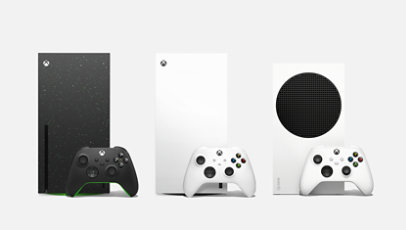
Get up to $150 for your used console
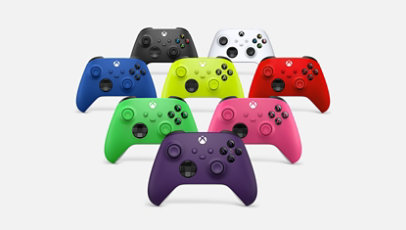
Save on select Xbox Wireless Controllers

Up to 70% off games
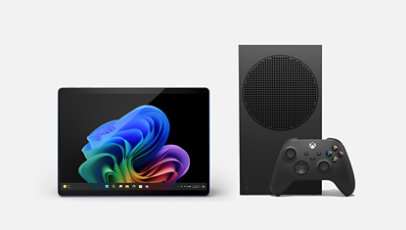
Microsoft Certified Refurbished devices

Bundle and save on Surface
Why buy from Microsoft Store
-
60-day price match
-
Get it now, pay later
-
Microsoft Complete
-
Free 60-day returns


Microsoft Store Offer Terms
Frequently asked questions
-
It’s never been easier to send someone a near-instantaneous gift on Xbox or your PC. Find out how to send and gift Xbox Game Pass Ultimate or a digital game with these in-depth instructions.
-
While onsite Microsoft Stores are now closed, we do offer in-person business consultations, device servicing, and purchase of select Microsoft products at our four Microsoft Experience Centers (New York City, London, Sydney, and Redmond). We also offer one-on-one expert help at Microsoft Store
online. -
Yes, Microsoft has Black Friday sales. Microsoft Store offers discounts on a variety of products which may include laptops, tablets, software, accessories, and Xbox products during Black Friday. Additionally, we provide benefits like free shipping, price protection, and trade-in options.
-
The Microsoft Black Friday and Cyber Week sale for 2024 runs from November 14th to November 30th. During this period, you may see discounts on a variety of products, including Surface devices, Xbox consoles, games, and accessories. Be sure to check the Microsoft Store for specific deals and offers available throughout the sale period.
-
We’re proud to offer active, former, and retired military and their families discounts of up to 10% off select products and services. Learn more here.
-
Yes. Earning rewards is easy, simple, and fun. Just search, shop, or play with Microsoft and you’ll be on your way to earning more than ever. Learn more here.
-
Yes, employees at eligible companies save 30% on select Microsoft 365 subscriptions through the Microsoft Workplace Discount Program. You can check your eligibility for the Workplace Discount Program here.
Why buy from Microsoft Store
Love it, or return it
Find a better price?

Complete coverage, without compromise

Cash out when you trade in
-
Discounts: Supplies limited. Actual savings depends on product availability.
Flexible payments: With approval of Citizens Pay Line of Credit at 0% APR and 12- or 18-month term. Subject to individual credit approval. See the Citizens Pay Line of Credit Agreement for full terms and conditions. Citizens Pay Line of Credit Account offered by Citizens Bank, N.A.
- Price protection: Microsoft Store Price Adjustment: Valid on purchases of qualifying new or refurbished consumer and commercial physical products made at Microsoft Store and Microsoft Experience Centers in select markets for 60 days from the date product is received. Eligible Retailer Price Adjustment: Valid on purchases of qualifying new consumer physical products from Microsoft Store and Microsoft Experience Centers in select markets for 60 days from the date product is received. Excludes commercial and refurbished products. An Eligible Retailer Price Adjustment cannot be requested at time of purchase. Microsoft reserves the right to verify an eligible retailer’s advertised price and availability of the product. The product sold by the eligible retailer must be identical to the product sold by Microsoft and must be in stock for purchase at the eligible retailer at the reduced price. Exclusions apply. Both price adjustments: Price Adjustment must be requested within 60 days after the customer receives the product and cannot be completed at time of purchase. Customer is eligible only if the product is in stock for purchase at Microsoft Store or a Microsoft Experience Center. Customer must contact Microsoft to request the adjustment. For purchases from Microsoft Store, contact Microsoft Store Sales and Support with your Microsoft Account information and any other information requested by a representative. For purchases from a Microsoft Experience Center, you must return to the location with your receipt. Limit 1 price adjustment total per product. Excludes Surface Hub, HoloLens, and Windows DevKit. See Microsoft Store Price Protection for full terms and full list of eligible retailers
- Returns: Available with eligible physical products purchased from Microsoft Store online and Microsoft Experience Centers in select markets. Return process must be started within 60 days after customer receives the product. Limit 5 product returns per eligible customer purchase. Excludes Surface Hub, HoloLens, and Windows DevKit. Applicable return policy applies. For purchases made at Microsoft Store, see applicable Microsoft Terms of Sale for more information. For purchases made at a Microsoft Experience Center, see receipt for more information. Microsoft reserves the right to modify or discontinue offers at any time.
-
Trade-In: Available only through the Microsoft Store online in the United States. Offer valid for reimbursements after trade in of a qualifying device (PC, laptop, mobile phone, tablet, or video game console). To be eligible for trade in, (i) you must own the qualifying device, (ii) the device must power on, (ii) the battery must hold a charge (the device must not be required to be plugged in to operate), and (iv) the device must be in fully-functional, working condition and not have broken or missing components, a cracked display or screen, liquid damage, modification(s) or the device warranty seal broken. The device cannot be password protected and must include its original chargers, accessories, and hard drive. Customer must mail in the qualifying trade-in device to be eligible for reimbursement. Devices determined to not meet eligibility criteria may be shipped back to the customer or recycled. Recycled devices are not eligible for cash back. All trade-ins are final. Cannot be transferred or otherwise redeemed for cash or gift cards, or credit towards other devices or products. May not be combined with other offers. Microsoft reserves the right to modify or discontinue offers at any time.
This offer is operated by Teladvance, LLC and is not sponsored by Microsoft. Any appraised value will be determined at trade in and provided by Teladvance. All trade-ins and reimbursements are subject to Teladvance’s sole discretion and approval.
-
[1] Offer valid with pre-orders and purchases of any Surface Pro Copilot+ PC or Surface Laptop Copilot+ PC after trade in of qualifying devices made from April 1, 2025 – June 30, 2025 where the customer submits the online trade-in claim for their used device between April 1, 2025 – June 30, 2025 (the “Promotion Period”), while supplies last. Available only in Microsoft Store online in the United States and Canada. Recycled devices are not eligible for cash back. To be eligible for trade in, (i) you must own the qualifying device, (ii) the device must power on, (ii) the battery must hold a charge (the device must not be required to be plugged in to operate), and (iv) the device must be in fully-functional, working condition and not have broken or missing components, a cracked display or screen, liquid damage, modification(s) or the device warranty seal broken. The device cannot be password protected and must include its original chargers, accessories, and hard drive. Trade in value depends on device type and condition after inspection by Teladvance. Customer must mail in the qualifying trade-in device to be eligible for the reimbursements within 15 days of completing the online trade-in process. All trade-ins are final. See Microsoft Store Trade-in Program for steps and requirements. Not valid on prior orders or purchases; cannot be transferred or otherwise redeemed for cash or gift cards, or credit towards other devices or products. May not be combined with other offers. Price discount does not include taxes, shipping, or other fees. Void where prohibited or restricted by law. Microsoft reserves the right to modify or discontinue offers at any time. Limit of 1 trade-in per new Surface device purchase per custome
This offer is operated by Teladvance, LLC and is not sponsored by Microsoft. Any appraised value will be determined at trade in and provided by Teladvance. All trade-ins and reimbursements are subject to Teladvance’s sole discretion and approval.
-
[2] Offer valid with purchases of qualifying new Xbox Series X or S consoles after trade in of qualifying Xbox, PlayStation and Nintendo consoles made between February 6th, 2025 and June 30th, 2025, where the customer submits the online trade-in claim for their used device between February 6th, 2025 and March 31st, 2025 (the “Promotion Period”), while supplies last.
Available only in Microsoft Store online in the United States (including Puerto Rico). Excludes refurbished devices. To be eligible for trade in, (i) you must own the qualifying device, (ii) device must power on, battery must hold charge and not be required to be plugged in to operate, and device must be in fully-functional, working condition without broken/missing components, cracked display/housing, liquid damage, and include original chargers/accessories and hard drive, and (iii) device cannot be password protected, must not have any modification(s) or have device warranty seal broken. To receive trade in value, you must purchase a Xbox Series X or S console and complete the online trade-in claim during the Promotion Period. Customer will receive a minimum of $60, up to $400, depending on device type and condition after inspection by Teladvance.
Customer must mail in the qualifying trade-in device to be eligible for the reimbursements within 15 days of completing the online trade-in process. All trade-ins are final. See Microsoft Store Trade-in Program for steps and requirements. Not valid on prior orders or purchases; cannot be transferred or otherwise redeemed for cash or gift cards, or credit towards other devices or products. May not be combined with other offers. Price discount does not include taxes, shipping, or other fees. Void where prohibited or restricted by law. Microsoft reserves the right to modify or discontinue offers at any time. Limit of 1 trade-in per new purchase of Xbox console per customer.
This offer is operated by Teladvance, LLC and is not sponsored by Microsoft. Any appraised value will be determined at trade in and provided by Teladvance, LLC. All trade-ins and reimbursements are subject to Teladvance, LLC and sole discretion and approval.
Big Microsoft Store Sales and Savings
Get the things you want—and need—for less. Microsoft sales give you access to incredible prices on laptops, desktops, mobile devices, software and accessories. And whether you need to upgrade your work space, update your computer, connect with friends and family, or just want to kick back, play a game or listen to your favorite music, we've got you covered.
At the Microsoft Store Canada, deals change constantly. So even though you'll always find great prices on the latest technology, the actual items available change on a regular basis. However, because the categories of products remain consistent, anytime you stop by you'll likely find great deals on things like:
Computers: Often available at $100 off or more, you'll find laptops and desktops that are fast, powerful and feature crystal-clear images. Laptops boast long-lasting batteries, and many of our computers give you the option to use both a traditional keyboard and a touchscreen.
Mobile Devices: For those who want to connect with their friends, family and co-workers at home and on the go, you'll find incredible Microsoft deals on some of the hottest tablets and phones available. Featuring long-lasting batteries, high-resolution cameras, sleek touchscreens and intuitive interfaces, they give you anywhere access to your favorite apps, email, websites and text messaging. Oh—and depending on the device you choose, you can even go the old-fashioned route and call the person you need to connect with.
Software: In order to get the job done right, you occasionally need to invest in new software. Fortunately, by shopping the latest Microsoft sales, you can keep your costs down and still get the features and functions you need. However, today's collection may not be the same as tomorrow's, so as your needs change check here first for software at a savings.
Accessories: From the latest headphones to stylish cases, scanners to printers and keyboards, our accessories will give you the power to do more with your favorite devices. But just like everything else in the sale section of the Microsoft Store, deals on accessories change quickly, so check back often and get the things you want for less.